
(available in 

 )
)
The Spectra SQL Server Utility is used to maintain the Spectra data files. To use the SQL Servier Utility, click the Start Menu > Programs > StudioPlus Spectra [year] > Utilities > SQL Server Utility.
 |
ATTENTION!
You should not use this utility unless directed by StudioPlus technical support! A SQL database is an upgrade from the base Spectra product and you will not have it unless it has been specially purchased. Setup will be coordinated with our technical support department when this product is purchased. This topic is provided as reference for those customers who are using the SQL upgrade. |
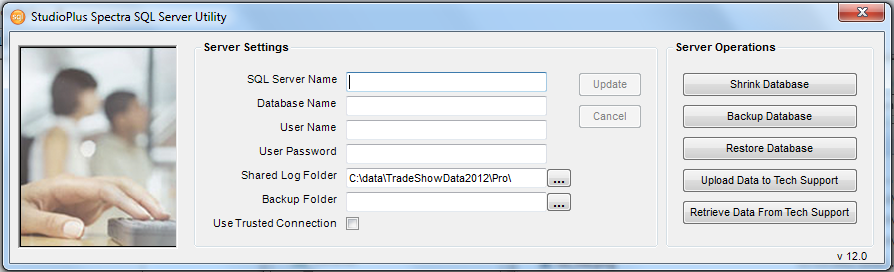
SQL Server Utility
SQL Server Name - The SQL Server Name where your Spectra data resides.
Database Name - The name of your Spectra database on that server.
User Name - The user name set by your SQL administrator.
User Password - The password set by your SQL administrator.
Shared Log Folder - The location where any log files created by Spectra will be stored. Most likely this will be a shared folder on your server. This is also where the Spectra SPUpdates folder will be created when you use the Internet Upgrade Utility to check for updates. PDA sync logs will be stored here as well.
Backup Folder - This location will only work on the server. You must choose a local drive on the server for it to work.
Use Trusted Connection - If you have a domain setup on all of your computers, you can use a trusted connection instead of a user name and password.
|
ATTENTION!
Unless directed by StudioPlus technical support, the following functions will mostly be performed by your SQL administrator. SQL server manager can automatically run scripts for most of these functions, so most likely that is how they will be run. |
Shrink Database – Similar to the Compact and Repair for Microsoft Access databases. Removes unneeded space in the database.
Backup Database – This choice will only work on the server and only if the Backup folder path is set to a local drive location.
Restore Database – Again, this choice will only work on the server and with a local drive location.
Upload Data to Tech Support – SQL databases are typically much larger files and will take a long time to upload. In most cases we will arrange for remote access to your server to manage database issues. Depending on your Internet connection speed, a file could take hours to upload.
Retrieve Data from Tech Support – Usually used only to get your converted database to your SQL server.
