


 )
)(available in
)
Spectra can make it easy to print single labels to a Dymo Label printer.
StudioPlus Version 5.7 or above
Dymo LabelWriter printer (can be shared printer on your network, but the Dymo software must be installed on each computer)
Dymo Label Software Version 7.7 or above installed on each computer you want to print labels from.
Go to Maintenance > Preferences > Printing Preferences.
Set the choice for printer for Single Labels to either "Prompt for Printer" or your Dymo printer. Note that if you leave the setting at Use Global Settings, this setting will apply to all computers connected to this database. If you just want to make this change for just this computer, change the radio button to Use Station Settings.
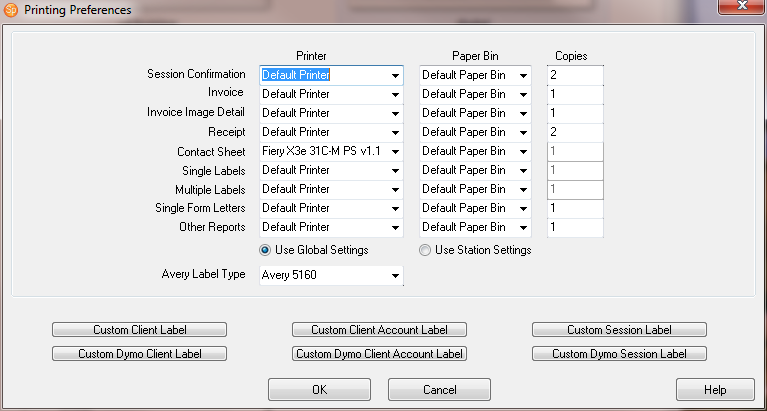
The Printing Preferences screen
Click OK to close the Printing Preferences screen.
Click Maintenance > Preferences > Workstation Preferences.
Set the drop-down for Dymo Label Printer to the desired Dymo printer. Remember, workstation settings apply only to the computer you are working on. If you'd like to use a label printer on another computer, repeat these steps on each machine.

The Dymo Options section of the Workstation Preferences screen
Click OK to close the preferences window.
To use the printer, look in the Print
> Print Profile Group
of the client, session, invoice, production order or proof order records.
Look for choices to print a mailing label, account label, or session
label. If you're set to Prompt
for Printer,
choose your Dymo printer from the dialog window. The individual label
should then print out with information for the record you have open.
Once the Dymo settings are done, you will also see Dymo label printing
icons  on the toolbars for client and session
records.
on the toolbars for client and session
records.
You can also use your Dymo printer to print out a set of labels in the Reports > List and Labels section. On the Printer Preferences (see above), also set the Multiple Labels setting to Prompt for Printer or your Dymo printer. As long as you have the Workstation Preferences set for Dymo Label on that computer, you can print the results of these reports to your Dymo printer.
We recommend that a Dymo LabelWriter be used for best results. Be sure to install the latest software driver updates for your printer from Dymo.
