Managing Tasks
In this topic... ShowHide
Tasks are a great way to stay organized with all the miscellaneous things
you do everyday to keep your studio running at peak condition. Not only
can you view a list of what you need to do today, you can look back at
the history of your tasks and recall events and other things that should
have been done. For example, did I do this step for that session last
time?
Creating New Tasks
Manually
To manually create a new task, click File
> New > Task (or Ctrl+D)
from any hub, or click the Task
icon  in the New
group on the ribbon. This opens a new task. Tasks may be assigned
to a department and/or user, linked
to a client, session, invoice, or email, and marked
as private or urgent. For a complete description, see the "Features
of the Task Record" topic.
in the New
group on the ribbon. This opens a new task. Tasks may be assigned
to a department and/or user, linked
to a client, session, invoice, or email, and marked
as private or urgent. For a complete description, see the "Features
of the Task Record" topic.
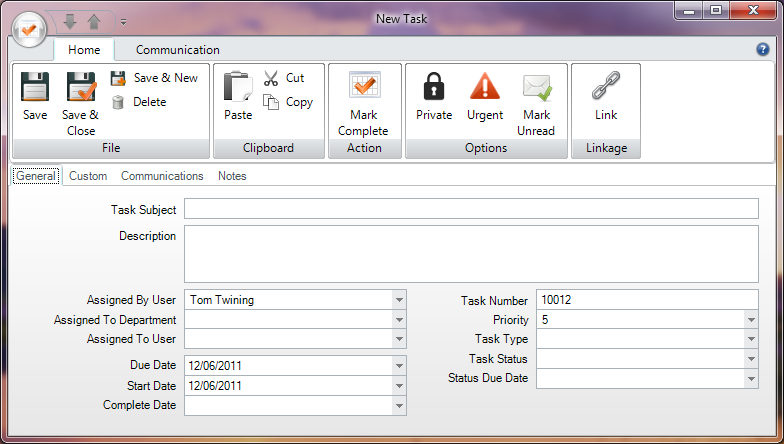
New Task
Automatically
There are several ways you can use Spectra to automatically create tasks.
Tasks can be generated with any type of trigger you create, as well as
automatically during your InSpiredByYou sync process. For more information
about generating tasks with triggers, see the "Triggers"
topic. For information about InSpiredByYou auto tasks, see the "Tasks
Tab" section in the "Setting
up InSpiredByYou" topic.
Finding Existing Tasks
Go to the Tasks hub by using
the hub menu (or click Go > Tasks
or press F11).
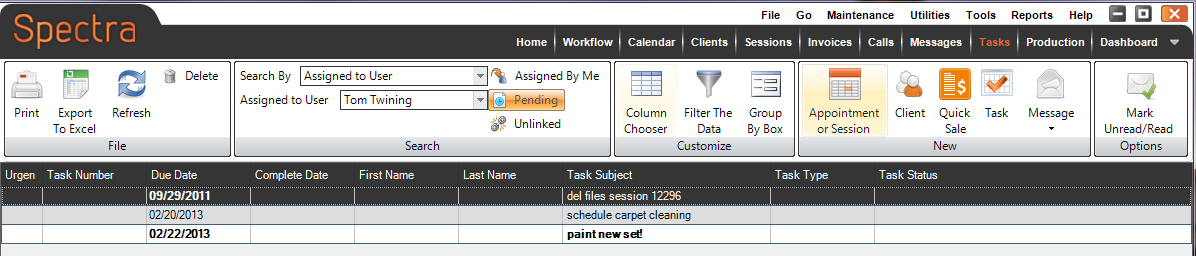
Tasks Hub
Search
By default, the Search By field
is set to "Assigned to User" and the current logged-in user
is selected. You can also choose to search by the following: assigned
to department, task type, task status, task number, task due date, or
filter. Depending on what you choose to search by, you will either get
one or more drop-down lists to specify the search criteria or just a space
to type in. Choose or type in your criteria and then press Enter.
All tasks matching your request will be shown. To see your entire task
list again, clear out the criteria space and press Enter
again.
You can use any combination of the Assigned
By Me, Pending, and Unlinked options to narrow your
search.
View Options
Click on one of the column headers to sort the list in ascending order.
Click again to sort in the opposite order. You can also click and drag
the column headers to change the order in which the columns are displayed.
Finding Tasks for an Individual Client
To find a list of tasks related to a specific client, open the client
record and click the Tasks tab.
All completed and non-completed tasks related to this client will be shown.
Double-click on a line to view the task.
Finding Tasks for a Specific Session
To find a list of tasks related to a specific session, open the session
record and click the Tasks tab.
All completed and non-completed tasks related to this session will be
shown. Double-click on a line to view the task.
Deleting Tasks
To delete a task simply select the task you want to delete in the task
hub and click Delete in the File group of the ribbon. Another
way to delete a task is to open the task and click Delete
Task on the ribbon.
Task Alerts
After a new task is created for you by another user a message will appear
in the lower right portion of your screen. This is a reminder and an alert
to the new task that was created for you. To close the message simply
click the x in the upper right of the message.
Double-click a task to open it.
See "The
Tasks Hub" section of the "Spectra Hubs" chapter for
more information.

Return to top
|