Price List Item Maintenance is where you set up each individual retail item sold by your company.
Many of the fields are optional; however, the
more you use them, the greater your flexibility in invoicing and reporting. Each field is described below. Go to Maintenance > Price List > Price Lists and then open an item in your price list to see this maintenance screen.
General Tab
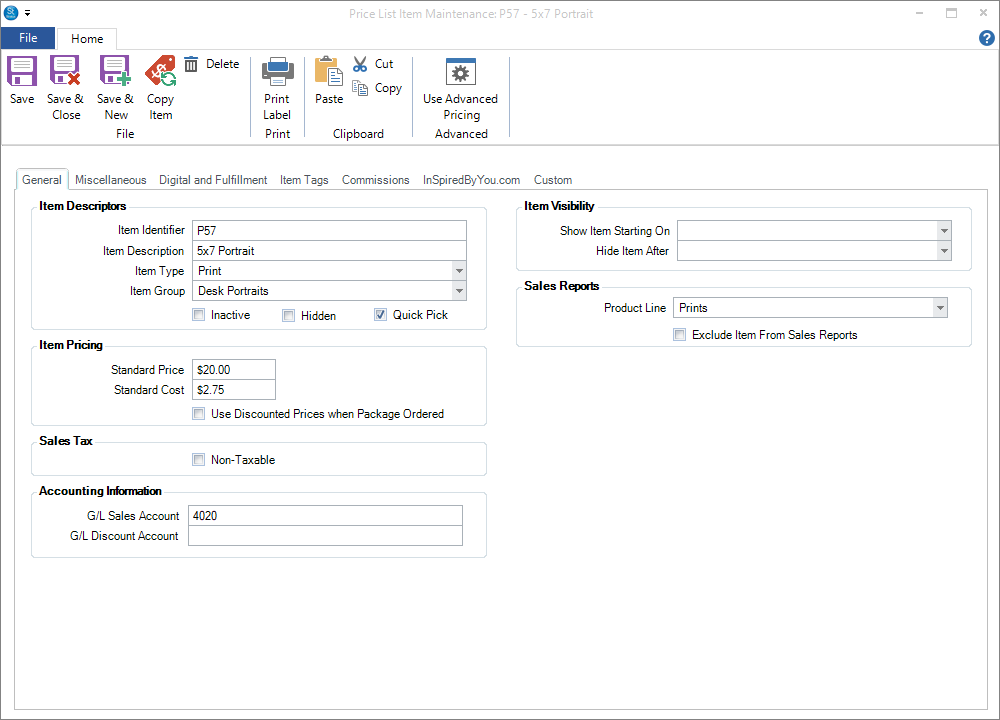
The General tab is where basic information about the item is located and entered, including description, price, sales tax information, and more. The tab includes the following sections:
Item Descriptors
| Field | Description |
| Item Identifier | Item
identifiers can be any combination of letters and numbers, up to 12
digits in length. The item identifier must be unique within each price
list. |
| Item Description | The description of the item that should appear on the client invoice. (Required) |
| Item Type | Select one of the predefined item types for this item. (Required) See also: About Item Types |
| Item Group | Select or modify the item group this item belongs to. (Required) |
| Inactive | Check this box to make a price list item inactive. |
| Hidden | Hidden items could be those products you include as a part of a package, but do not sell a la carte. Hidden items will not appear in the price list when invoicing, but can still be added to an order by typing the item identifier in the invoice detail line. |
| Quick Pick | Select the products you want to appear on your "Quick Pick" list during a sales presentation. If this is a commonly sold item, then select Quick Pick so you can easily select it while invoicing. |
Item Pricing
Note: This section will not appear for "Promotional" type items.
| Field | Description |
| Standard Price and Cost |
Enter the standard price and cost of the item. Note: If you are using the Advanced Pricing features (available in    ), these fields will be disabled and you will use the Pricing and Costs tab (below) to enter the item price and cost. See also: Advanced Pricing ), these fields will be disabled and you will use the Pricing and Costs tab (below) to enter the item price and cost. See also: Advanced Pricing |
| Discount Price when Package is Ordered | Check this box if you want the software to automatically charge a discounted price for this item if the client orders a package at the same time. |
| Discounted Item Price | Enter the discounted price of the item. Note: This field only appears on this tab when you check the Use Discounted Prices when Package Ordered checkbox and you are not using Advanced Pricing. |
Sales Tax
| Field | Description |
| Non-Taxable | This box should be checked if the item is always non-taxable. |
| AvaTax Code | This field will only appear if you have set up the software to calculate sales tax automatically through an integration with the third-party Avalara AvaTax Calc. See also: Avalara Tax Integration |
Accounting Information
| Field | Description |
| G/L Sales Account |
(available in ) Select the specific general ledger account you want
sales of this item to be posted to. If left blank, sales will post to
the default sales account listed on the Accounting
page in Company (Studio) Preferences
under General Sales.
If an accounting link is chosen, data will export to the sales account
listed here; otherwise, the account number or label merely prints
on all posting reports. (Optional) See also: Accounting |
| G/L Discount Account |
(available in ) Select the specific general ledger account to which you want
any discounts on this item to be posted. If left blank, discounts
will post to the default discount account listed on the Accounting
page in Company (Studio) Preferences
under Discounts. If an accounting
link is chosen, data will export to the discount account listed here;
otherwise, the account number or label merely prints on all posting
reports. (Optional) |
Item Visibility
These fields are optional. Use one or both of these date fields to control when an item is available for use. Examples may include new items or promo codes that shouldn't be used until a certain date or items that expire on a specific date.
| Field | Description |
| Show Item Starting On | (optional) Enter the date this item should become available for use. |
| Hide After | (optional) Enter the date this item should no longer be available. |
Sales Reports
| Field | Description |
| Product Line |
(available in ) Product lines are used to group items that are of a similar
type for reporting purposes. Sales reports are grouped by product
line, so it’s extremely important to create product lines that will
group sales items in the way you want them to be reported. Create
and maintain your product lines in Maintenance
> Price List > Product
Lines. (Optional) See also: Product Lines |
| Exclude Item From Sales Reports | Use this option for items like gift certificates or coupons to keep them from appearing on the Today's Snapshot panel of your home page and from being included in your sales and profit analysis reports. These items will still appear on the Invoice List report. |
Package Information
Note: This section will only appear for packages (i.e., the "Package" item type has been selected). See also: Creating a Package
| Field | Description |
| Min/Max # Images Allowed | Indicates the minimum and/or maximum
number of poses to be selected when ordering a package. When the package is added to an invoice,
Spectra will warn you if not enough or too many poses have been selected
based on these settings. Note: Pose verification must also be enabled on the Digital tab in Company (Studio) Preferences. See also: Company (Studio) Preferences - Digital |
| Total Units Allowed | Indicates the total number of units a client can order in the package. See also: Unit Pricing |
| Additional Pose Fee | If the number of poses allowed in a package is limited to a certain number, the software can automatically calculate add-on pose
fees. First, set up an add-on pose fee item in the price list. Then
open the package and enter the Maximum
# of Images Allowed (above). Now, in the Additional
Pose Fee field, you can select the "Add-On Pose Fee"
price list item from the drop-down list. During invoicing, the software will notify you and automatically add the pose fee to the
invoice
when you choose more than the maximum number of poses
allowed in the
package. See also: Company (Studio) Preferences - Digital |
Other Information
Based on the selections you make on this page, as well as on how you use certain features in the software, additional items may appear on this window, including:
| Field | Description |
| Item Sales Tax | This option will appear only if you are using a Line Item Level sales tax method. Select the sales tax level from the drop-down list for this price list item. (Optional) |
Miscellaneous Tab
The Miscellaneous tab includes additional settings are stored for this item. The tab includes the following sections:
Options
Note: This section will not appear for "Promotional" type items.
| Field | Description |
| Track Inventory | Check this box if this item is a stocked item. Items with this feature checked will require an inventory adjustment form filled out in order to add new items into inventory or also to adjust inventory qty that may be off. Whenever an Inventory Item is sold on an invoice, then that item will be taken out of inventory. Whenever a Credit Memo is issued for the return of an inventory item, then it will automatically be placed back into inventory. Once this feature is enabled, a new option will appear in the ribbon called Inventory Adjustments. See also Inventory Workflow. |
| Gift Certificate/Gift Card |
(available in ) Check this box if the item is a gift certificate. When checked, the software will automatically select Non-Taxable. You can also choose to have gift certificate numbers automatically assigned and indicate what the starting number should be or to use a completely random number. When
you sell this item on an invoice, the software will assign a gift certificate
number, allowing you to track the gift certificate and enter the number
when a customer redeems the gift certificate. Also choose if the software should automatically email the client when the gift certificate is initially paid for. See also: Gift Certificates |
| Limit replacement items | Check this box if this item can only be replaced by items with the same Item Tag. An example of when this would be used is if you have a package that offers 5 sheets. You can create a generic placeholder item for the package until the client chooses the specific sheets they want. See also Item Tags |
| Auto add additional items | Check this box to automatically add items from the selected Item Tag to the invoice when this item is added (as either a stand-alone item or as part of a Package). Inversely, if this item is removed from an invoice, the other items will also be removed. See also Item Tags |
| Require the presence of another item | Check this box to require an item of the selected Item Tag to be present on the invoice before this item can be added. See also Item Tags |
| Require Credit Reason | Check this box to require an Invoice Credit Reason any time a refund is made for this item. See also: Creating a Refund |
| Require image selection | This check box will require the user to select an image for this item before saving the invoice. |
Unit-Based Pricing
| Field | Description |
| Unit Value | This indicates the unit value of the individual item when added to a unit-based package. For example, an individual 5x7 print may have a unit value of ".5" and a sheet of 2 5x7s would have a unit value of "1". See also: Unit Pricing
|
Pricing and Costs Tab
   | NOTE: This feature is available in the Essential, Professional, and Enterprise versions of both Spectra and Stratus Desktop. |
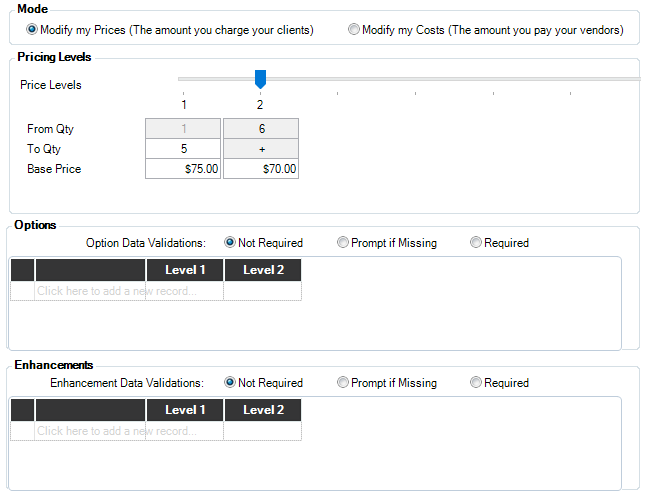
This tab is enabled when the Advanced Pricing option has been selected on the ribbon. It allows you to set different price levels based on quantity, add options and enhancements to the item, and set up item costs. For details, see Advanced Pricing.
 |
HERE'S A FLASH FOR YOU! If you're setting up your price list and simply want to get it up and running quickly, you may not want to use advanced pricing. However, it can be to your advantage to use the features advanced pricing. You should use advanced pricing if:
|
Digital and Fulfillment Tab
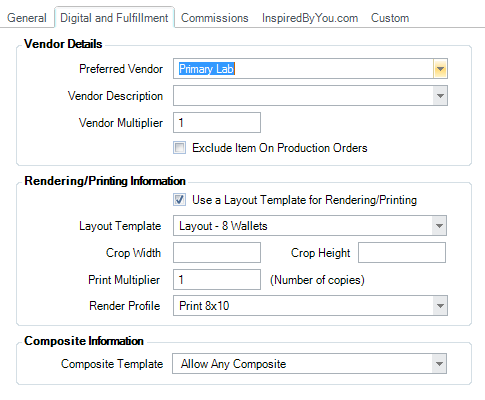
| Column | Description |
| Preferred Vendor |
Select vendor you purchase this product from most often. Maintain your vendor list in Maintenance > Production > Vendors. See also: Vendors |
| Vendor Description |
Use this field if the vendor uses an item description that is different that the description your studio uses. The drop-down list is controlled by the software and is not modifiable. You can, however, type in a description that is not shown on the list. |
| Vendor Multiplier | If the vendor sells the item in set quantities, enter the appropriate number that your quantity should be multiplied by in order to match the vendor's set quantity. |
| Exclude on Production Orders | (available in ) Use this option for session fees, package headers, and other miscellaneous items that do not go into your production cycle. See also: Production |
| Use Layout Template | (available in ) Check this box if this item should be linked to a layout template. Layout templates are used to print a single image multiple times on a sheet (i.e., sheet of wallets). See also: Designing Print Layouts |
| Layout Template | (available in ) Choose the appropriate layout template for this item. See also: Designing Print Layouts |
| Crop Width/Height |
Enter the height and width that should be used to crop this item. |
| Print Multiplier | Enter how many copies of this item should be printed. For example, if the item you're selling is "24 wallets" and you are using a layout template with 8 wallets per sheet, use a multiplier of 3 to print the set of 24 wallets. |
| Render Profile | (available in ) Choose a render profile that should be used for this item. See also: Render Profiles |
| Composite Template | (available in ) This section only appears for "Composite" type items. Select the composite template for this item. When you create a composite with this template, it will be linked to this price list item. See also: Using Composite Templates |
Package Components Tab
Note: This tab will only be visible on "Package" type items and is used to select the products that are included in the package. See also: Creating a Package
| Column | Description |
| Item No. | Displays the item identifier and provides a drop-down list of all items in the price list. |
| Description | Displays the item description and provides a drop-down list of all items in the price list. |
| Qty. | How many of this item are included. Note: Each line item in a package will allow a single pose. When different poses of the same item are allowed, the item should be included in the package more than once. See also: Creating a Package |
Promotional Item Details Tab
| | NOTE: This feature is available in the Essential, Professional, and Enterprise versions of both Spectra and Stratus Desktop. |
Note: This tab will only be visible on "Promotional" type items and is used to set up the details of a coupon or promotion. See Creating a Coupon or Promotion for more information on this tab.
Item Tags
| | NOTE: This feature is available in the Essential, Professional, and Enterprise versions of both Spectra and Stratus Desktop. |
For each item, use the arrow buttons to move tags from Available to Selected. See Item Tags for more information about this feature.
Commissions Tab
| | NOTE: This feature is available in the Professional and Enterprise versions of both Spectra and Stratus Desktop. |
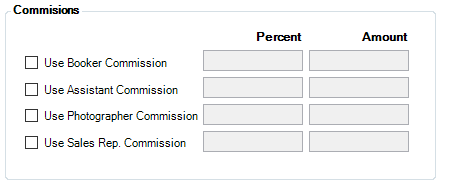
Commissions can be tracked on a per item basis for the booker, assistant, photographer, and/or sales representative. Percentage or dollar amounts may be used. See Employee Commissions for details.
Inventory History
| | NOTE: This feature is available in the Essential, Professional, and Enterprise versions of both Spectra and Stratus Desktop. |
If an item is enabled to track inventory, this tab will show all the inflows and outflows of this item into inventory as well as the current quantity on hand. Double-clicking on any line will either pull up the corresponding invoice or the inventory adjustment form. See Inventory Adjustments for more information on this feature.
InSpiredByYou Tab
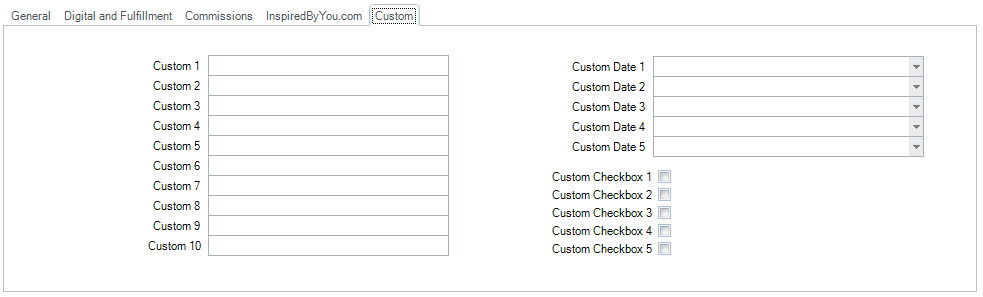
See also: InSpiredByYouCustom Tab
You can update the names of these custom fields in Maintenance > General > Custom Labels. See also: Custom Labels