


 )
)(available in
)
The Invoice Wizard will help you to enter your invoice information quickly and easily. You can start the Invoice Wizard by creating a new invoice from a Client or from a Session.
You can customize the wizard for your studio by using the Wizard Builder tool. You may want to eliminate or add pages to the wizard, change what the message says on each page, or adjust other options. Go to Tools > Wizard Builder.
 |
DOES IT MATTER WHETHER I CREATE AN INVOICE
FROM THE SESSION OR CLIENT SCREENS?
YES, IT DOES! An invoice should almost always be created from a Session record. The only time you should create an invoice from a Client record is if this client is purchasing a product or service from you, but has not completed a session. An example of a client-based invoice would be a customer walks in off the street and wants to purchase a frame. When recording a session-based invoice, make sure you are creating the invoice from the actual session record this invoice pertains to. |
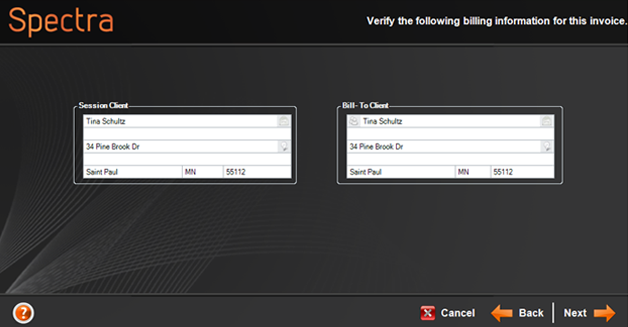
Verify the Client
Information. If someone other than the session client will
be responsible for paying this invoice (i.e., bride's parents, grandpa
and grandma, etc.) click the person icon in the Bill-To
Client section to change the Bill-To
Client information. You will be able to search for another
client in your database or create a new one. Click Next.
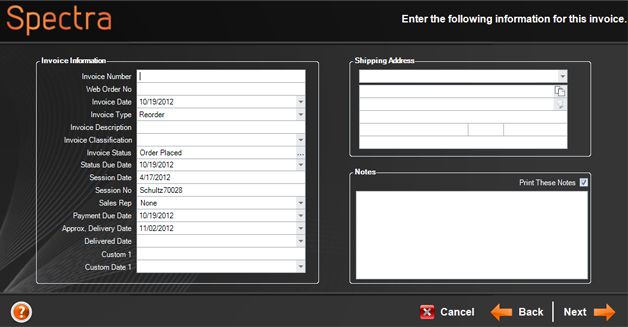
Enter the Invoice
Information, including a Shipping
Address and Notes.
Click Next.
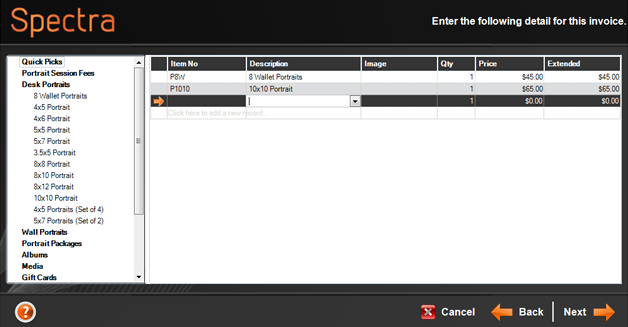
Add items to the invoice by double-clicking them
in the product list on the left. Select images and adjust quantities
in the invoice detail section on the right. Click Next
when finished adding items to the invoice.
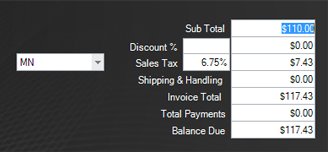
Enter a Discount
as needed and modify the Sales Tax
State if necessary. Click Next.
Select your Payment
options. You can create a single payment, a payment plan, or simply
choose to finish creating the invoice without a payment. Make your
selection and click Next.
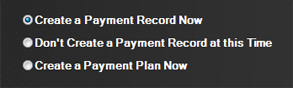
If you choose to create a payment or payment plan, the wizard will walk you through those steps.
On the final page of the Invoice Wizard, choose whether you want to print the invoice and/or open it for further modifications. Click Finish.
See the "Managing Invoices" topic of the "Working With Invoices" chapter for more information on creating new invoices.
 |
HERE'S A FLASH FOR YOU!
When entering information into Spectra wizards, you'll find that Spectra automatically capitalizes the first letter and un-capitalizes the rest of the letters. For example, if you type "sara johnson," Spectra will change it to "Sara Johnson" when you tab to the next field. If you don't want Spectra to change the capitalization of an entry, press the F3 key instead of the tab key when moving to the next field. For example if you don't want "John McDonald" changed to "John Mcdonald," press the F3 key to move to the next field. |
